How to unblock your microphone
What to do when the browser has been told never to ask for the microphone again, in Chrome, Edge, Safari, iPhone, iPad and Android.
Your browser is blocking the microphone for Thinking Mode, so speaking an answer will not work. Nothing is recorded, and a message says microphone access is blocked.
The message has a How to fix it button, which opens these steps. The line under the message box also reads Microphone blocked. How to turn it back on until the microphone works again.
This happens when the browser asked for permission and the answer was Never, Block or Don’t allow. The browser remembers that answer for the site and stops asking. Undoing it takes a few seconds, and you only need to do it once on that device.
Nothing you have already done is lost, and you can keep answering by typing while the microphone is blocked.
In a secure task, tell your teacher first
In a secure task, leaving the page counts as leaving the task and locks you out. Don’t go hunting through browser settings. Tell your teacher, and carry on by typing. They can let you back in if you are locked out, and it is best to change the setting before your next task.
In a task without secure mode, you can follow the steps below straight away.
Chrome, Brave or a Chromebook
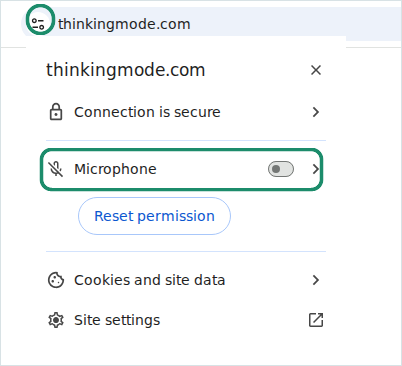
Straight after a blocked attempt, the address bar says Microphone not allowed. That label fades after a few seconds and leaves a crossed-out microphone on the icon at the left of the address bar.

- Click that icon at the left of the address bar.
- In the panel that opens, switch Microphone on. Reset permission does the same job the other way round: it clears the answer, so the browser asks you again next time.
- Reload the page.
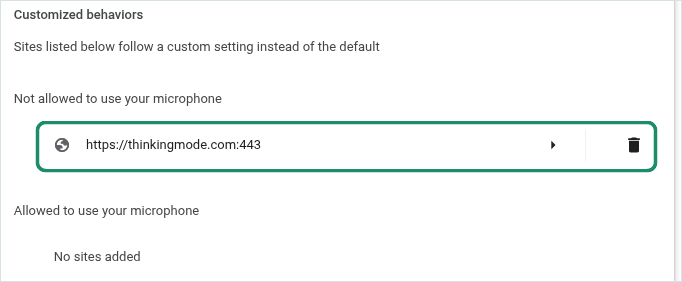
If the site is not listed there, type chrome://settings/content/microphone into the address bar and press Enter. Under Not allowed to use your microphone, find the Thinking Mode address. Delete it with the bin icon, or open it and set Microphone to Allow.
Microsoft Edge
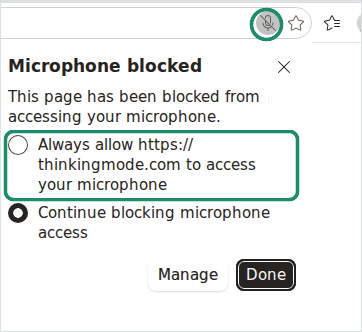
Edge puts the crossed-out microphone at the right of the address bar, and it stays there. Click it, choose Always allow…, press Done, then reload the page.
If the icon is not there, click the padlock at the left of the address bar instead. Under Permissions for this site, switch Microphone on, or press Reset to default so Edge asks you again next time. The full list lives at edge://settings/content/microphone.
Safari on a Mac
- With the task page open, choose Safari → Settings for This Website… from the menu bar.
- Set Microphone to Ask or Allow.
- Reload the page.
The same list lives in Safari → Settings → Websites → Microphone, which is where to look if the site does not appear.
iPhone or iPad
- In Safari, tap the page settings icon (aA) at the left of the address bar, choose Website Settings, then set Microphone to Ask or Allow.
- Check the browser is allowed the microphone at all: Settings → Privacy & Security → Microphone, and switch on Safari (or Chrome, if that is what you use).
- Reload the page.
Android phone or tablet
- In Chrome, tap the icon at the left of the address bar, then Permissions (or Site settings), and set Microphone to Allow.
- If the site is not listed, open ⋮ (menu) → Settings → Site settings → Microphone, find the Thinking Mode address under Blocked, tap it and choose Allow.
- Check Chrome’s own app permission: Settings → Apps → Chrome → Permissions → Microphone.
- Reload the page.
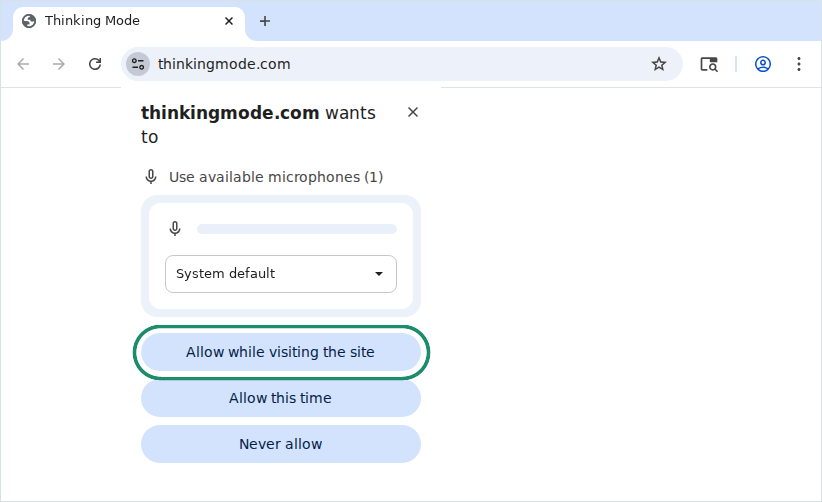
When the prompt comes back
Clearing the permission means the browser asks you again the next time you speak. Choose Allow while visiting the site, so it is remembered for next lesson. Allow this time works too, but only until you close the tab.
If the setting is greyed out
On a school-managed laptop or Chromebook, the microphone setting can be locked by policy, and you will not be able to change it yourself. Ask your teacher to pass this on to your school’s IT team: the microphone needs allowing for your Thinking Mode address, which in Chrome and Edge is the AudioCaptureAllowedUrls policy, alongside AudioCaptureAllowed. On managed Chromebooks the same settings sit in the Google Admin console under Devices → Chrome → Settings → Users & browsers.
Check your computer allows the microphone too
A browser can only pass on access it has itself:
- Windows: Settings → Privacy & security → Microphone. Turn on Microphone access, Let apps access your microphone, and Let desktop apps access your microphone.
- Mac: System Settings → Privacy & Security → Microphone, and switch on the browser you use.
If it still will not work
- Another app has the microphone. Teams, Zoom, Meet and voice recorders can hold on to it. Close them, then reload the page.
- The task is running inside your LMS. An embedded frame does not always pass the microphone through. Open the task in its own browser tab and try again.
- An extension is interfering. Turn off anything you do not need for the lesson, or use a private / incognito window, where most extensions are off by default.
- Thinking Mode says “We can’t hear anything. Is your microphone muted?” That is a different problem: the permission is fine and the microphone itself is not picking you up. Check the mute switch on your headset, and that the right input device is selected.
- It says “Your microphone could not be started. You can type your answer instead.” Another app may be using the microphone, or it may have been unplugged. Close other apps that use it, check it is plugged in, then reload the page.