
LTI Integration — Canvas Setup Guide
Connect Thinking Mode to Canvas via LTI 1.3 — for school IT teams.
This guide is for your school’s Canvas administrator. It installs Thinking Mode in Canvas using LTI 1.3. Teachers and students can then open Thinking Mode from Canvas, and teachers can post Thinking Mode work and grades back to Canvas assignments.
You need to be a root account admin in Canvas. Sub-account admins can’t install apps.
We are happy to assist with this process. If you have any questions or would like guidance through the installation, please email: support@thinkingmode.com
Part 1: Install into Canvas
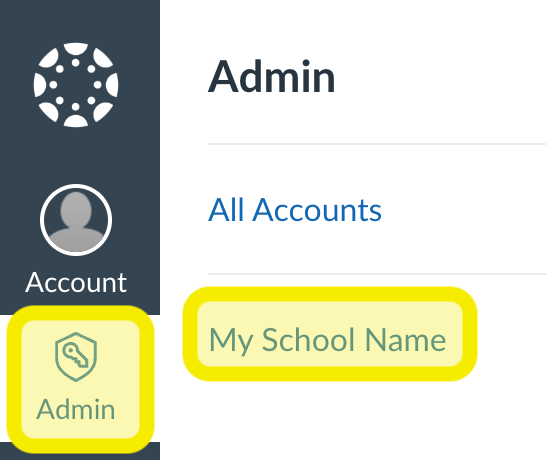
Step 1. Click Admin, then the name of your Canvas account. This is usually your school’s name.
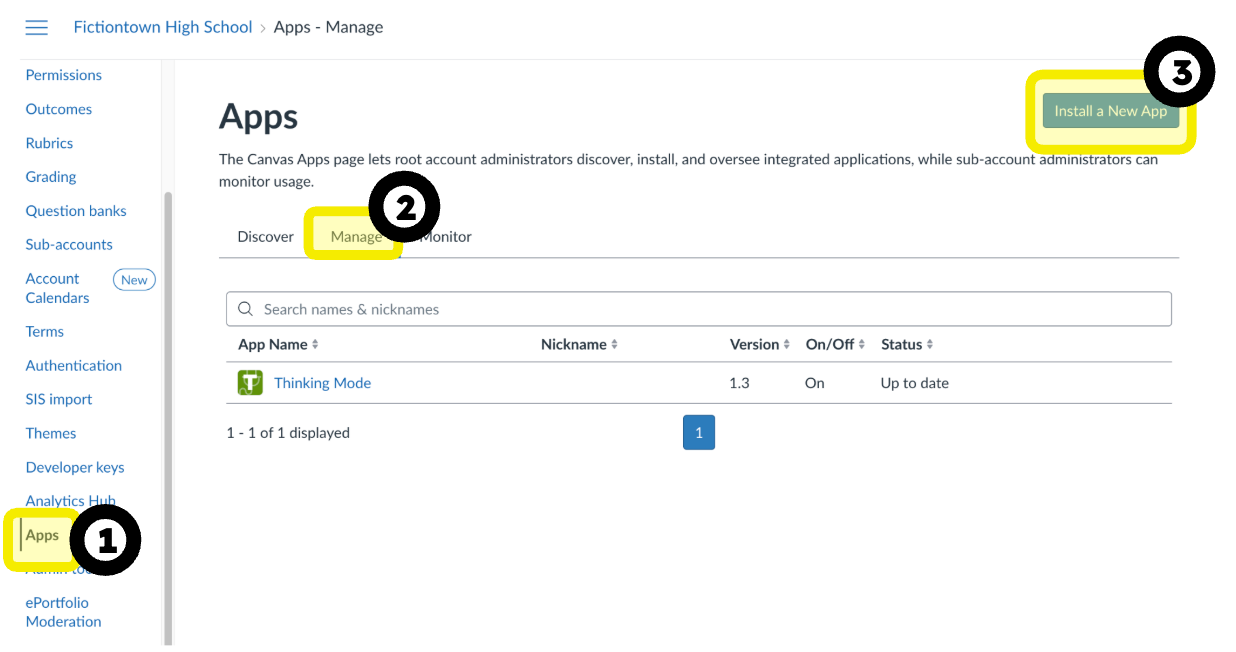
Step 2. Click Apps in the account menu, then the Manage tab, then Install a New App.
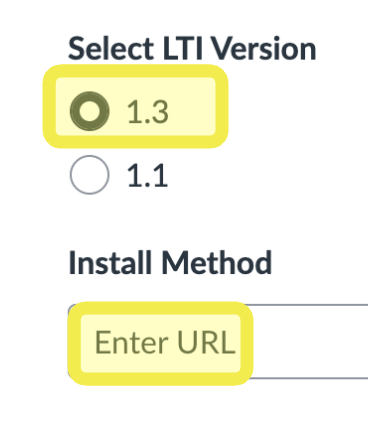
Step 3. Set Select LTI Version to 1.3 and Install Method to Enter URL. Enter this URL:
https://thinkingmode.com/lti/config
Go through the rest of the wizard with Next, then Finish.
Part 2: Make it available in courses
Thinking Mode is now installed, but it is set to Not Available, so it doesn’t appear in any course yet.
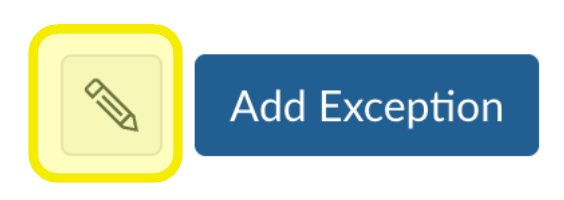
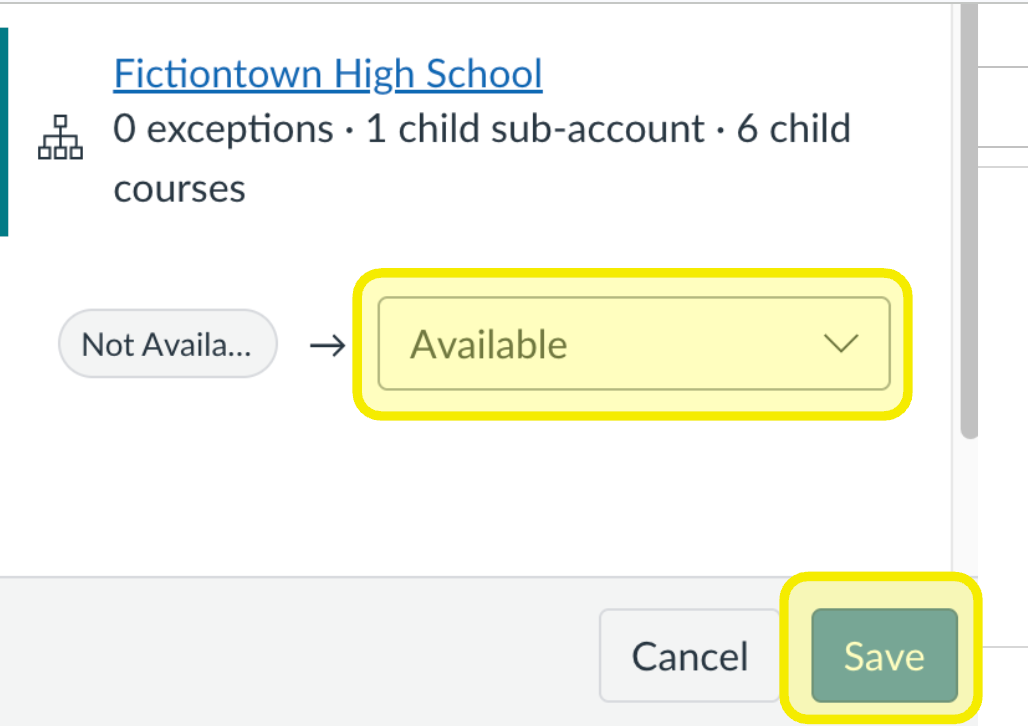
Step 4. In the Manage list, click Thinking Mode to open its page. Find the row for your account, which shows Not Available, and click the pencil icon to the left of Add Exception.
Step 5. Change it to Available and click Save.
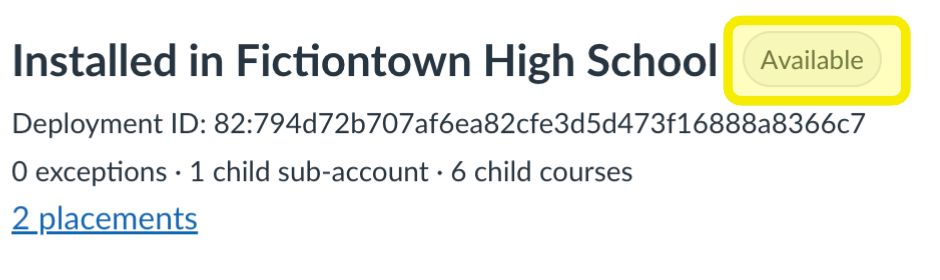
Step 6. Check that it now shows Available.
Part 3: Link your Canvas to your school in Thinking Mode
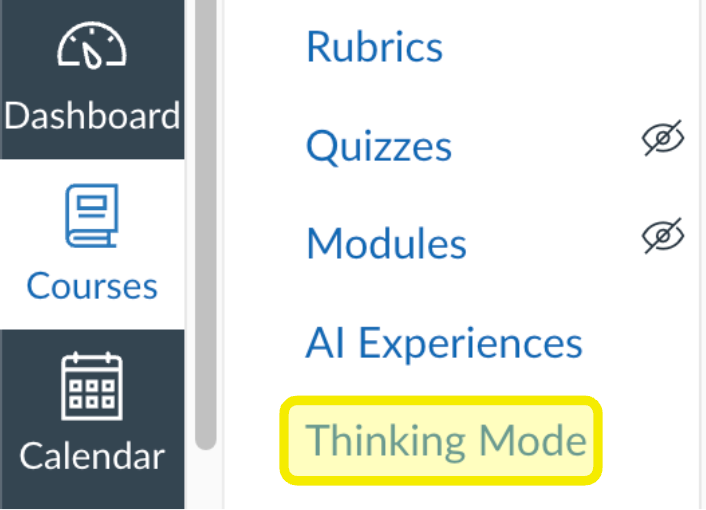
Step 7. Open a course and click Thinking Mode in the course navigation menu.
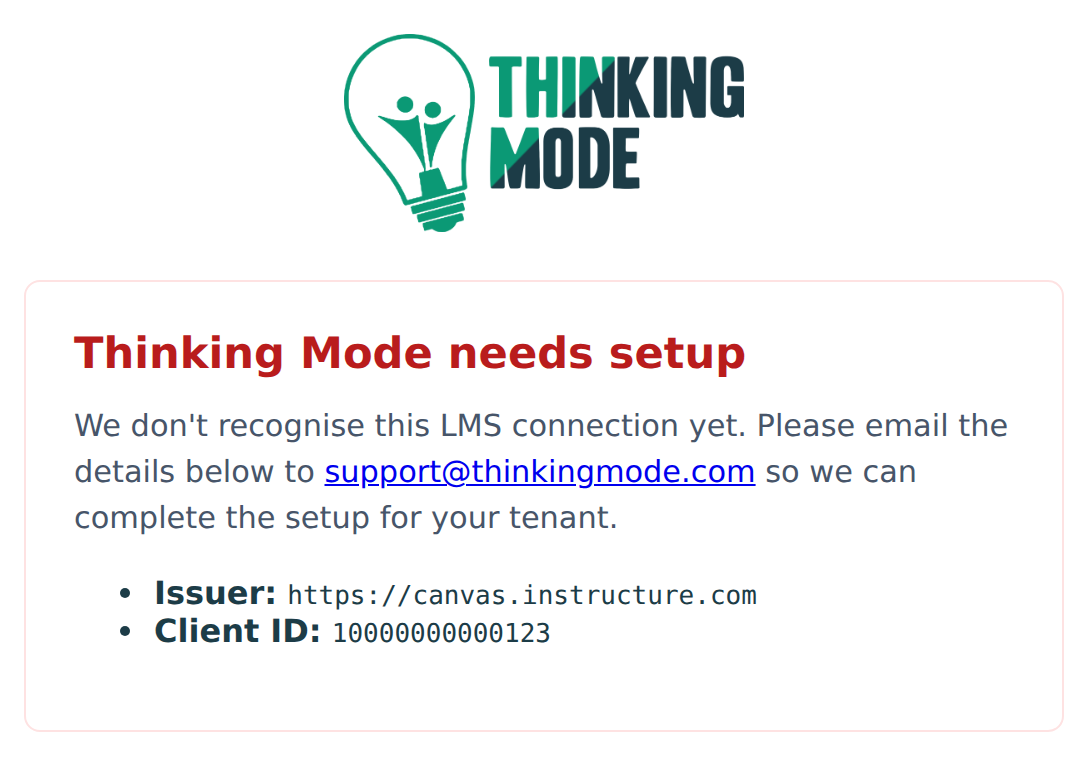
Step 8. Because we haven’t set up your Canvas yet, you see a page headed Thinking Mode needs setup. It lists your Canvas Issuer and Client ID. Copy the details on that page and email them to support@thinkingmode.com, so we can connect your Canvas to your school in Thinking Mode. If the page also asks for your Canvas authorisation, token and JWKS URLs, include those too.
Step 9. We reply within 2 business days to confirm your Canvas is set up and ready to test.
Click Thinking Mode in the course navigation again. The first time, it asks for your school email address and sends a confirmation link to it. Click the link in the email to finish connecting your account. After that, each launch shows a welcome page with an Open Thinking Mode button, which opens Thinking Mode in a new tab.
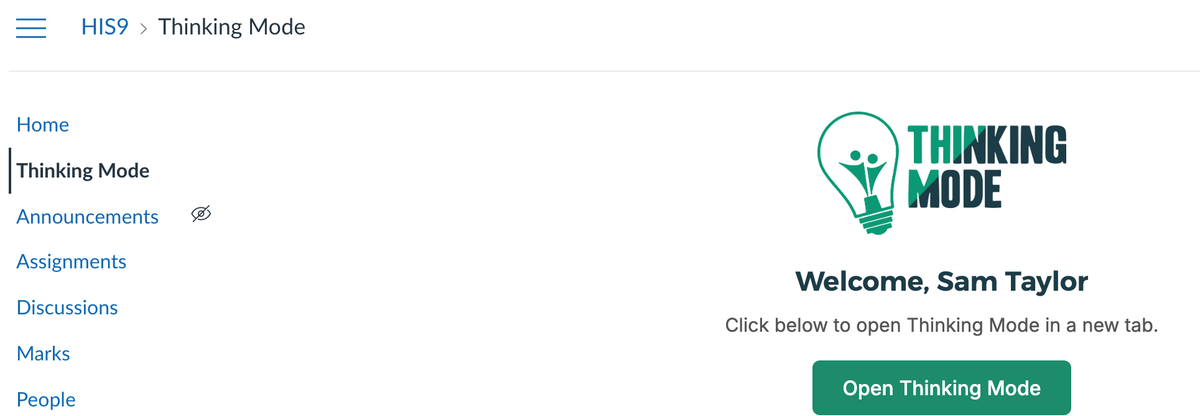
To check everything works, attach a Thinking Mode task to a Canvas assignment as a teacher, then open it with Canvas’s View as Student.