
How do linked Draft and Defence Mode tasks work?
Draft Mode captures supervised writing; Defence Mode then questions students on what they added afterwards.
Draft Mode and Defence Mode can be linked to create a multi-step assessment process.
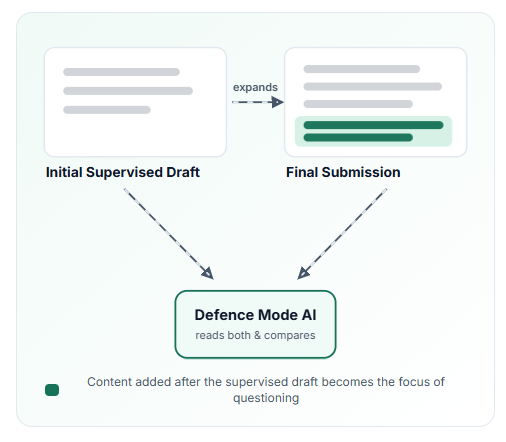
When linking Draft Mode and Defence Mode, our AI will have access to a student’s initial supervised draft and their final submission. The key idea: Defence Mode can then focus its questions on the content a student adds after their supervised draft.
How the two fit together:
Initial Supervised Draft. Students start their task by initially writing in Draft Mode under secure, supervised conditions. You’ll have instant access to this snapshot of their unassisted thinking and writing.
Further Research & Polish. Each student can then have more time and space to finish their work, potentially for homework or across unsupervised conditions.
Defence Mode. Students then upload their final submission to Defence Mode. The linked Defence task reads both the supervised draft and the final submission, compares them, and concentrates its questioning on what was added after the supervised draft — because that's where understanding most needs verifying.
Why link them?
Comparing the two versions lets the AI tell the difference between work a student clearly developed themselves (supervised draft) and content that appeared later that could have been added quickly without the student fully grasping the material.
The defence conversation targets its questioning on the added material, rather than re-questioning the whole piece.
Diagram: the initial supervised draft expands into the final submission; the added content (highlighted) is the focus of questioning; Defence Mode reads both and compares them.
Setting it up
Create the Draft Mode first, then create a Defence Mode and link it to that draft.
Students complete the Draft Mode under supervision, finish the work, then sit the linked Defence Mode.
How students find their draft
Students join the Defence task with its own access code and their first name, then show which draft is theirs. Choose how with Students find their draft by, near the top of the Defence task’s page.
Re-entry code (the default for new tasks). Students type the re-entry code from their draft. It’s on the results page of their draft, and you can see each student’s code on the Draft task’s page. Only the student who has the code can claim the draft. Students who haven’t submitted their draft yet haven’t been shown their code, so read it out, share it at the end of the lesson, or turn on Allow entry without a draft and link them afterwards.
Name search. Students type the first name they used in the Draft, pick their draft from the matches and click Yes, this is mine — continue. If no draft matches, they see “No matching draft found” and can try a different name, enter their re-entry code, or go to the Draft task first. This is quicker for students, but anyone who types a classmate’s name can claim that classmate’s draft first.
Defence tasks made before this setting was added use name search. You can change it at any time. The change applies to students who join after it.
Students who open both tasks from Canvas are matched to their draft automatically.
If a student is linked to the wrong draft
On the Defence task’s page, open the student’s menu and choose:
Link to a different draft to pick the right draft.
Mark as standalone to remove the link. The defence then goes ahead without a draft.
A draft can be linked to only one defence. If a student sees “A defence has already been started for this draft”, check who is linked to it and fix the link from that student’s menu.